On this page
A flickering MacBook screen is either a software glitch you can fix in minutes or a hardware fault in the display, its cable or the graphics. Two quick tests tell you which: start in safe mode and plug in an external monitor. This guide takes you from the easiest fixes to the hardware checks, explains flexgate on older MacBook Pro models, and shows when a repair is the right call.
Is it software or hardware?
| Test | Result | Likely cause |
|---|---|---|
| Connect an external monitor | External fine, built-in flickers | Built-in display or its cable |
| Connect an external monitor | Both flicker | Software or graphics |
| Start in safe mode | Flicker stops | Software: an app or setting |
| Open and close the lid slowly | Flicker changes with the angle | Display cable (flexgate, older Pros) |
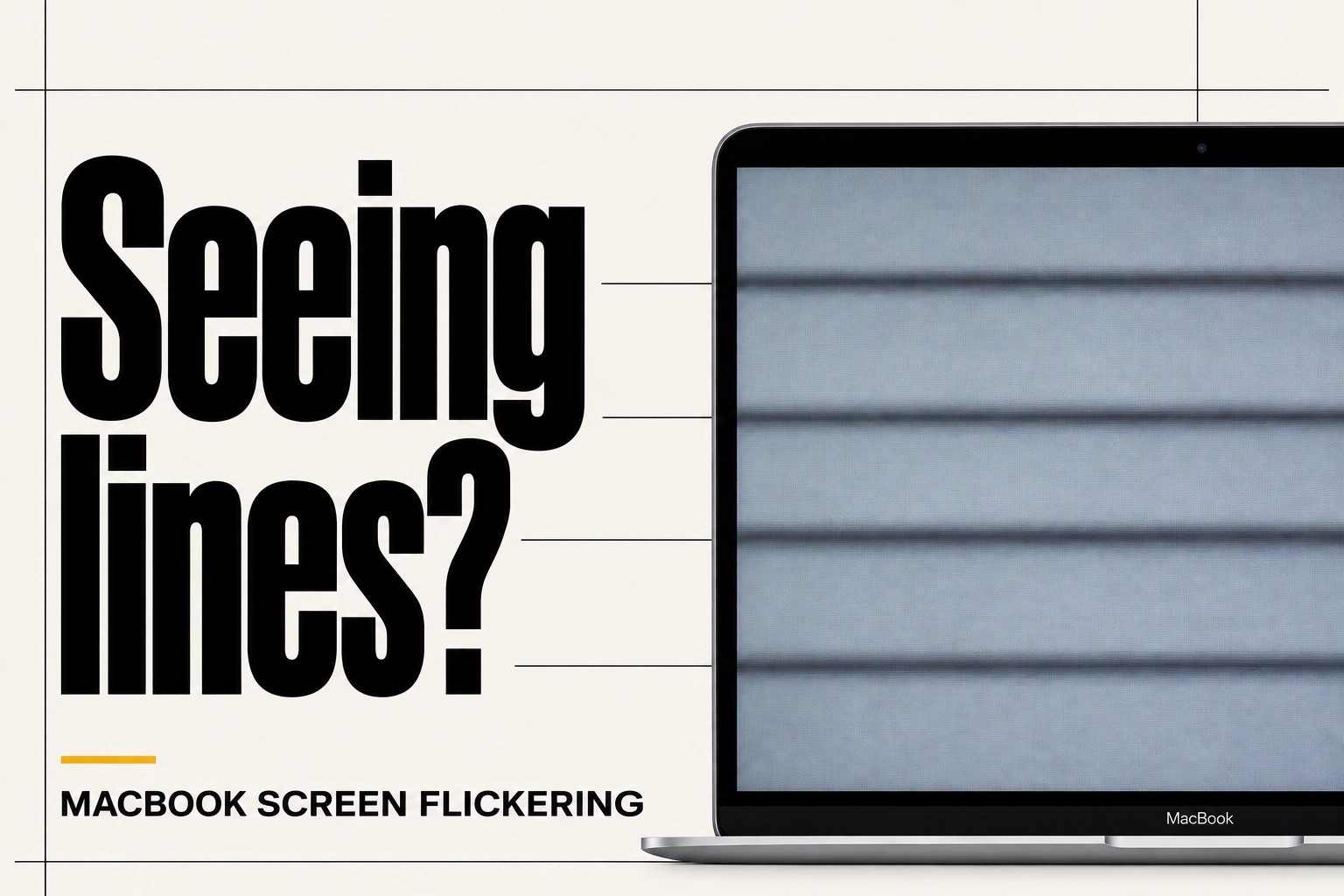
| Look closely at the screen | Lines, coloured bands or patches | Display panel |
Which fixes should you try first?
- Restart the Mac.
- Update macOS: Apple menu, System Settings, General, Software Update.
- Turn off True Tone and automatic brightness in System Settings, Displays.
- Swap a dynamic wallpaper for a still picture and toggle Dark Mode; some users see flicker with dynamic wallpapers.
- Older Intel MacBook Pro models with two graphics chips: turn off automatic graphics switching.
- Intel only: reset NVRAM and the SMC. Apple silicon Macs don't need either.
- Start in safe mode: on Apple silicon, hold power until startup options appear, select Macintosh HD, hold Shift and click Continue in Safe Mode. If the flicker stops, an app or login item is the cause.
Flicker that started after a macOS update
Apple Community threads in 2025 describe M2 MacBook Air models that began to flicker slightly after a macOS update, sometimes only at high brightness, with an external display unaffected. Apple has not published a fix for these reports. If yours started right after an update, install any newer update, try a slightly lower brightness and test in safe mode; a flicker that later disappears with an update was software, while one that stays, or grows into lines, is the panel.
Run Apple Diagnostics
Apple Diagnostics checks the hardware and gives a reference code. On Apple silicon, shut down, hold the power button until startup options appear, then press Command and D. On Intel, turn the Mac on and hold the D key. Share the result with the technician; it saves time on the bench.
What is flexgate on the MacBook Pro?
On 13-inch and 15-inch MacBook Pro models from 2016 and 2017, and possibly 2018, the thin cables that connect the screen run over the hinge and wear out as the lid opens and closes. The backlight cable usually fails first. You see an uneven glow along the bottom edge, like stage lights, then the screen flickers or goes dark when the lid opens past about 40 degrees, and finally there is no backlight at all.
Apple's backlight program has ended
Apple ran a free 13-inch MacBook Pro Display Backlight Service Program for the 13-inch 2016 models only. That program has now ended, so flexgate repairs are paid.
Which MacBooks flicker, and why
| MacBook | Most common cause of flicker | Usual repair |
|---|---|---|
| MacBook Pro 13-inch and 15-inch, 2016–2017 | Worn display cable over the hinge (flexgate) | Cable repair, or display if the panel is damaged |
| MacBook Pro 2018–2019 | Same cable design, made slightly longer, so it fails less often | Cable or display, after diagnosis |
| MacBook Air M1 and M2 | Panel or display electronics, often after pressure on the lid | Display assembly |
| MacBook Air and Pro M3, M4 | Usually software or settings; hardware faults are less common | Software fixes first, then diagnosis |
On the older Pros the flicker usually changes with the lid angle, because the cable is flexing. On Apple silicon Airs it tends to stay the same at every angle and often comes with lines or a patch, which points to the panel itself rather than a cable.
Can a flickering screen be fixed without a new display?
Sometimes. On flexgate-affected MacBook Pro models, a skilled technician can often repair or replace the display cable instead of the whole screen, which costs less. On M1 and M2 MacBooks, flicker with lines usually comes from the display electronics built into the assembly, so the full display assembly is replaced; our M1 MacBook Air and M2 MacBook Air screen guides explain how that works. Book a repair if the flicker stays after the software fixes and safe mode, if an external monitor works fine, if lines or bands appear, or if it changes with the lid angle. For other faults typical of your model, see MacBook issues by model.
Fixkart collects the MacBook from your home or office in Bangalore, diagnoses it on our bench and quotes before any work, cable repair or full display. You pay after the repair, and it carries our warranty. See all MacBook screen replacements.
What if only the external monitor flickers?
If the MacBook screen is fine and only an external monitor flickers, the Mac's display hardware is not the problem. Work through these:
- Swap the cable or adapter. Cheap or long USB-C to HDMI adapters are the most common cause.
- Set the refresh rate: System Settings, Displays, select the monitor and choose its standard refresh rate rather than a variable one.
- Plug straight into the Mac instead of through a hub or dock.
- Update macOS and the monitor's firmware if the maker offers one.
- Try another monitor. Monitor makers note that flicker with M1 and M2 Macs has affected many brands, and a different cable or setting usually settles it.
If the built-in screen also flickers on an external display, or lines appear on both, the graphics on the logic board need checking.
Frequently asked questions
Updates sometimes change graphics drivers. Install the next update, turn off True Tone and automatic brightness, and test in safe mode. If it continues, check with an external monitor.
Book this repair
Pick your model to see what the repair involves and book a technician.
Fixkart Service Team
Certified Repair Technicians
The Fixkart Service Team is a group of background-verified, certified technicians who carry out doorstep phone, laptop, tablet and smartwatch repairs across Bangalore every day. Our guides are written from hands-on workshop experience and reviewed by senior technicians before publishing.