On this page
In most phone repairs you will not lose any data. Your photos, WhatsApp chats, contacts and apps live on the storage chip soldered to the main board, and a screen, battery, charging port, back glass, camera or speaker repair replaces a different part without touching it. The phone switches back on exactly as you left it. Data is at real risk in only a handful of situations — liquid or board damage, a phone that will not start, or a software problem that needs the phone reset — and in every case a fresh backup removes the risk. This guide lists which repairs are safe, which are not, and how to back up and protect your privacy before anyone opens your phone.
Repairs that do not touch your data
These jobs swap a part and leave the storage alone. You will not need to set the phone up again afterwards:
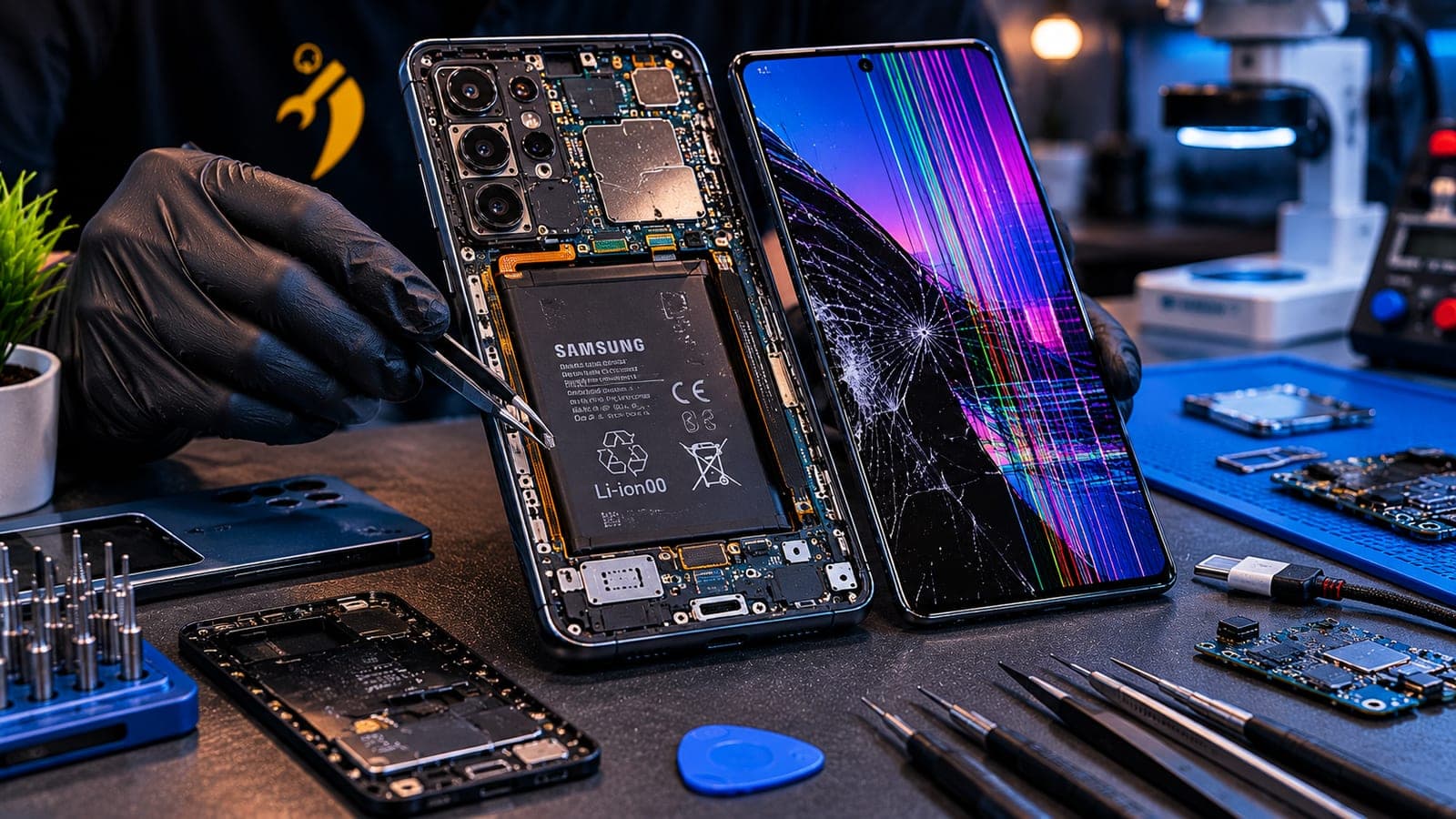
- Screen or display replacement — the glass and panel are changed; the board and storage stay. See screen repairs.
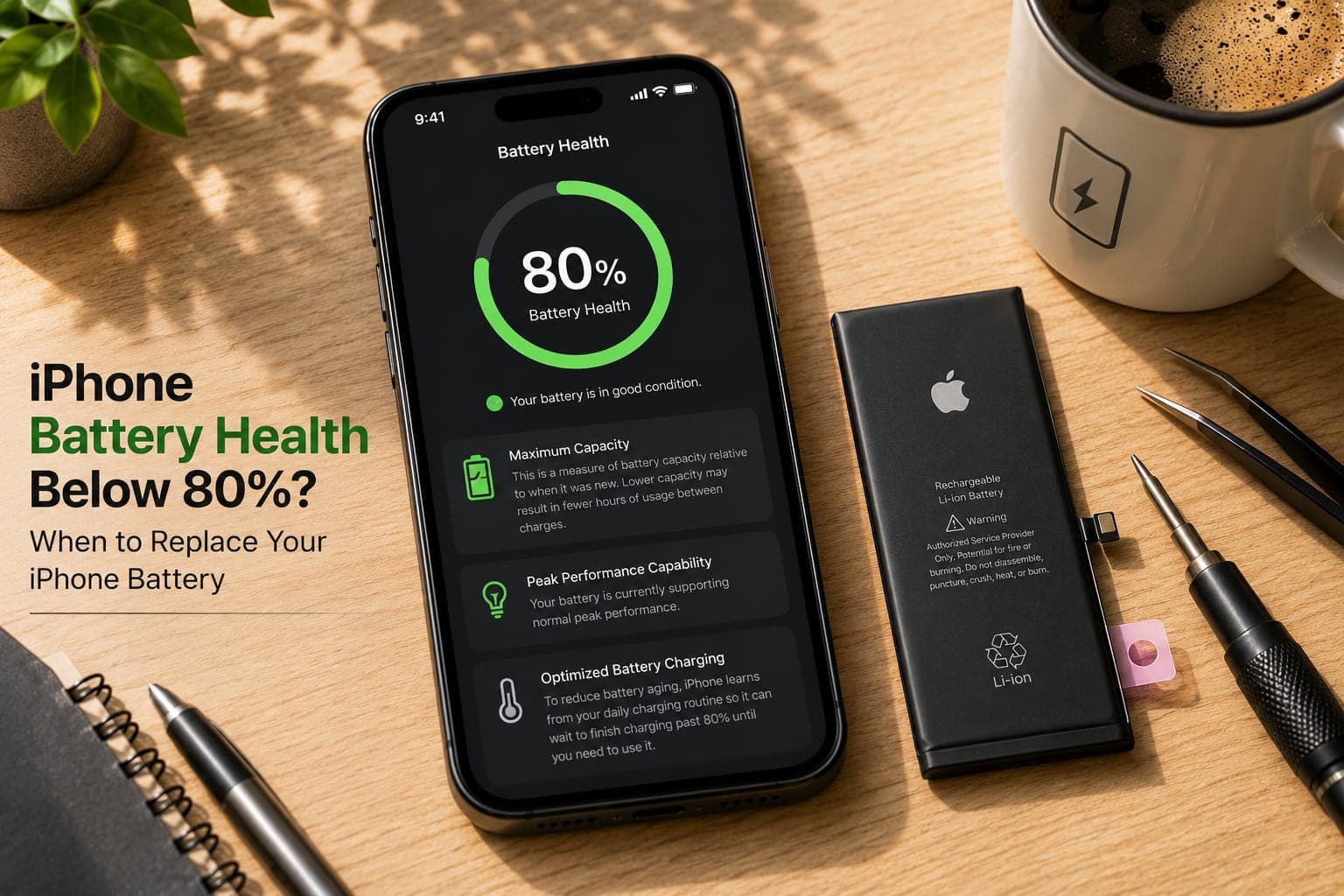
- Battery change — the old cell is unplugged and a new one fitted. This is the question we hear most: will I lose data when changing my iPhone battery? No. Our iPhone battery health guide explains the whole job.
- Charging port (charging patta) replacement — the port and its flex cable are changed. See charging port repairs.
- Back glass, cameras, speakers and microphones — all separate parts, connected to the board by small cables.
Good to know
Your SIM card holds your number, not your photos or chats. Taking it out, or moving it to another phone, does not delete anything stored on the phone itself.
When your data is genuinely at risk
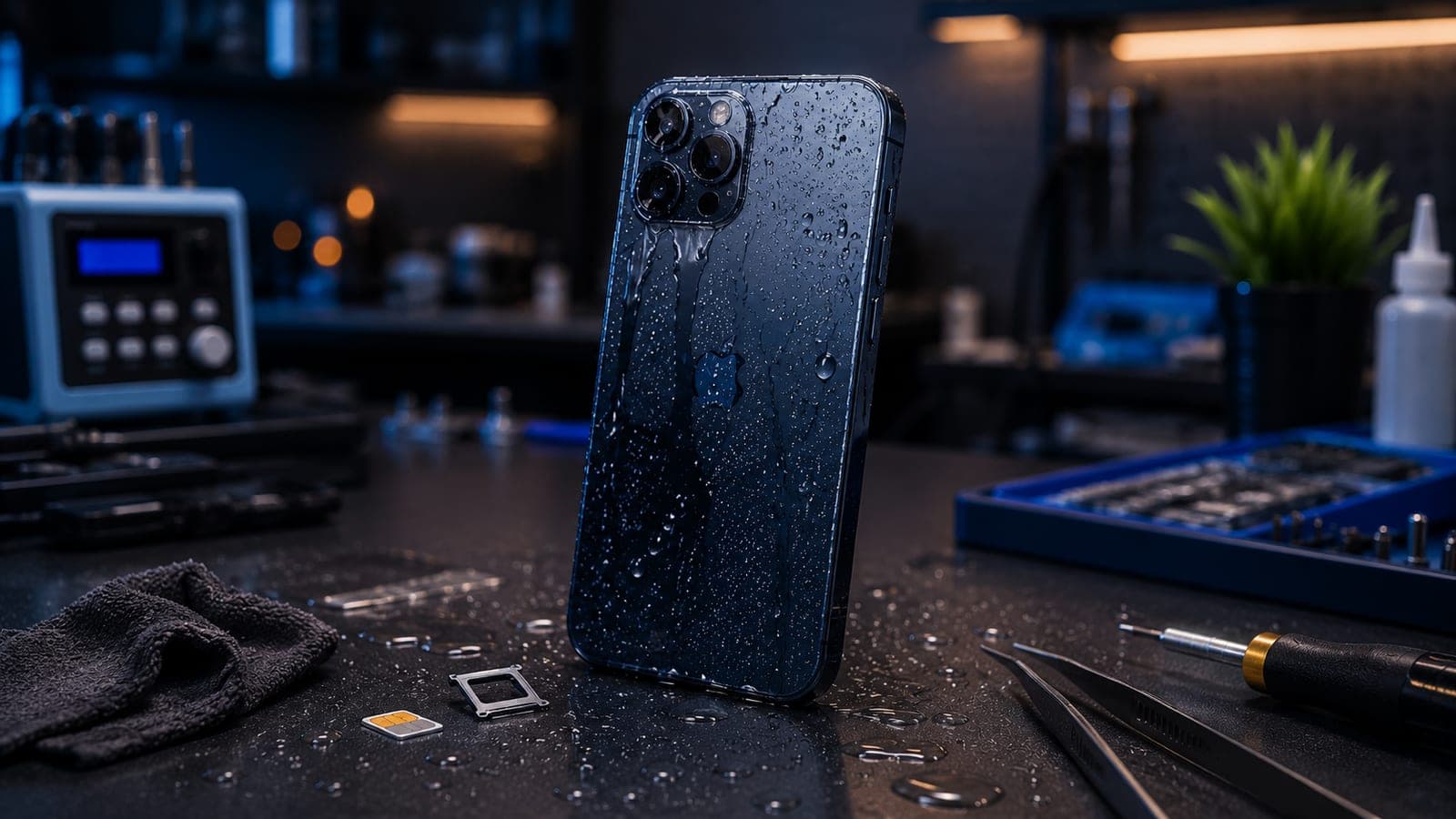
- Water damage. The repair itself does not erase anything, but corrosion can stop the board working altogether. If a wet phone still turns on, back it up immediately. Our water damage guide explains what to do first.
- Board-level faults. A phone that is dead, stuck on the logo or restarting in a loop needs board work, and the outcome depends on what failed. Sometimes the phone comes back with everything intact; sometimes it can only be brought back long enough to copy the data off; occasionally the data cannot be reached.
- Software faults that need a reset. If the fix is to erase the phone and reinstall the software, everything not backed up is lost. A good technician tells you before doing this, never after.
- Manufacturer service. Apple's own guidance warns that after service your device might have been erased, and you will need to restore it from a backup. Samsung likewise tells Galaxy owners to back up before a repair because a reset or a new mainboard means starting again.
Restart, reset or erase: what each one does
People often ask whether they will lose data if they restart or reset the phone while troubleshooting. The words sound alike but do very different things:
| Action | Deletes your data? |
|---|---|
| Restart or force restart | No — it only reloads the software |
| Reset Network Settings (iPhone) | No data — it removes saved Wi-Fi networks and passwords, VPN and other network settings |
| Reset All Settings (iPhone) | No — Apple says no data or media are deleted; settings go back to default |
| Erase All Content and Settings (iPhone) / Factory data reset (Samsung) | Yes — everything on the phone is removed |
How to back up before a repair
iPhone
- Back up to iCloud in Settings > your name > iCloud > iCloud Backup, or to a Mac or Windows PC with a cable.
- Let iCloud finish syncing. Apple recommends checking that the iCloud features you use show as saved before service.
- On iOS 27, turn on Ready for Repair or Trade-In. In the Find My app, select your iPhone, tap More, choose Repair or Trade In and tap Enable. On iOS 26 or earlier, Apple's guidance is to turn off Find My before service instead.
Samsung Galaxy
- Back up to Samsung Cloud or Google, or copy everything to a computer with Smart Switch.
- Turn on Maintenance Mode in Settings > Battery and device care > Maintenance mode. It restarts the phone into a separate account that cannot see your photos, messages or accounts, so a technician can test it without seeing your data. Turning it off brings everything back.
Keeping your data private during the repair
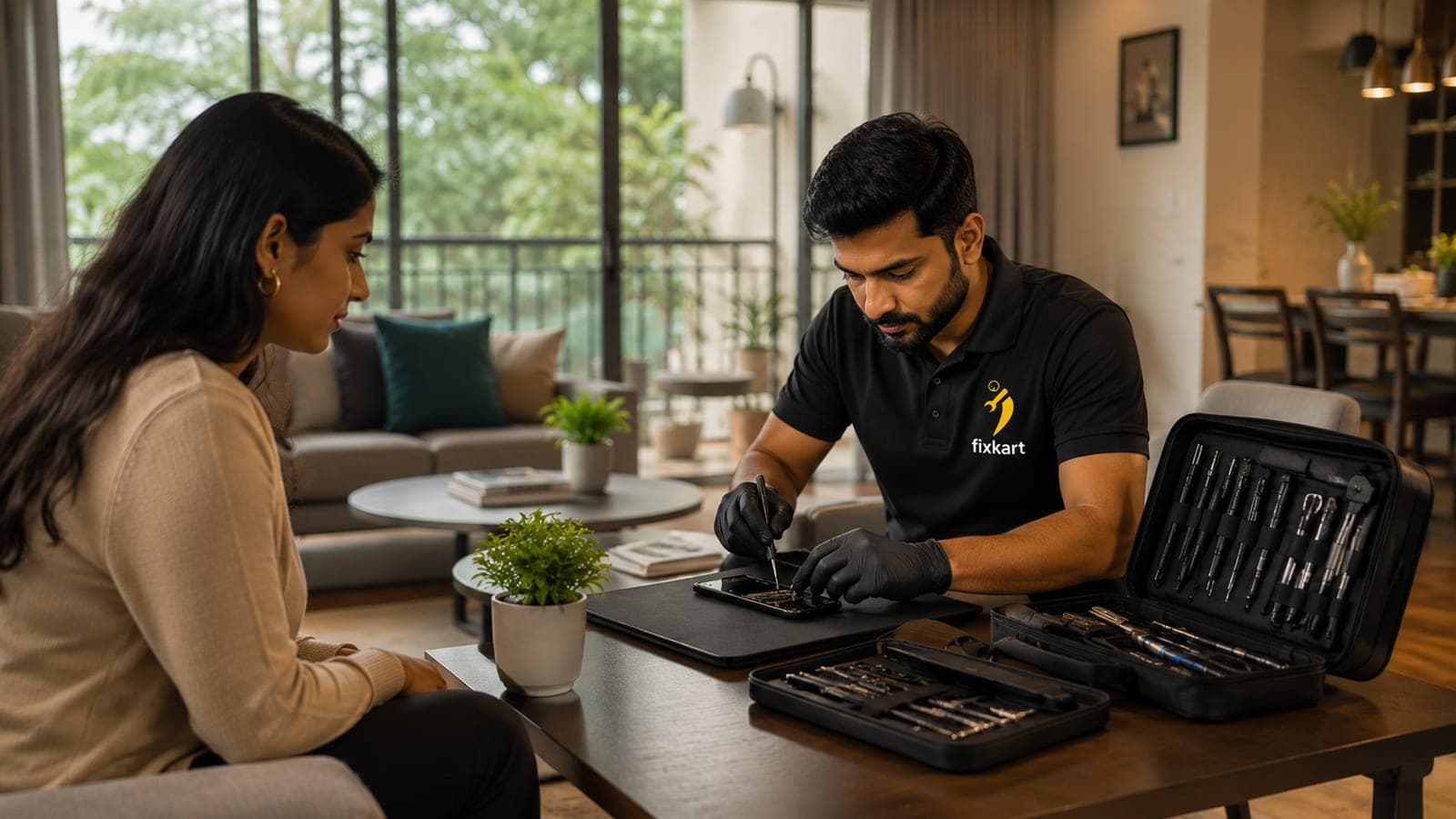
A repair should never need your passwords. Apple's advice applies to any phone: never give your Apple Account password, device passcode or account security details to anyone. If the technician needs the phone unlocked to test the new part — Face ID after a screen change, for example — you enter the passcode yourself, and you can stay with the phone while it is open. For a phone that is collected and repaired on a bench, Maintenance Mode on a Galaxy, or a fresh backup and the Find My step on an iPhone, keep your data out of view. Read more about how repairs are handled on our warranty page, and if your Galaxy has other problems as well, our roundup of common Samsung Galaxy problems can help you describe them.
What if the phone will not turn on?
Then there is no way to back it up first, and the repair aims to get the phone working again. Often the cause is a dead battery, a failed charging port or a display that is not showing anything, and the data is untouched once that part is replaced. If the board itself has failed, the technician explains what can be tried before starting, so you can decide. Ask for that explanation before any work begins — it is the one moment where the order of the steps matters for your photos. You can book a not powering on repair for your model, or start from the Apple or Samsung repair pages.
Frequently asked questions
No. A battery change unplugs the old cell and fits a new one; the storage chip on the board is not touched. Your photos, apps and settings are exactly as you left them. Backing up first is still good practice before any repair.
Book this repair
Pick your model to see what the repair involves and book a technician.
Fixkart Service Team
Certified Repair Technicians
The Fixkart Service Team is a group of background-verified, certified technicians who carry out doorstep phone, laptop, tablet and smartwatch repairs across Bangalore every day. Our guides are written from hands-on workshop experience and reviewed by senior technicians before publishing.